> ## Documentation Index
> Fetch the complete documentation index at: https://docs.myquery.ai/llms.txt
> Use this file to discover all available pages before exploring further.
# Report Builder
> The AI Query (Chat) interface is your intelligent companion for database exploration. It allows you to interact with your data using natural language—no SQL knowledge required. Simply ask a question, and MyQuery handles the rest.
## **1. Asking Your First Question**
At the bottom of the chat interface, you'll find a search bar. You can type any question related to your database, such as:
* *"What are the top 10 customers by total spend this year?"*
* *"Show me a monthly trend of new signups in 2023."*
* *"Which products are low on stock in the 'Electronics' category?"*
**Tip:** If you're not sure where to start, look for the **Suggested Queries** above the input box. These are generated specifically for your database to help you discover insights quickly.
***
## **2. Navigating the Results**
Once you submit a question, MyQuery generates three ways to interact with your data:
### **Chart View (Visual Insights)**
MyQuery automatically selects the best visualization for your data (e.g., Bar chart, Line graph, or Pie chart).
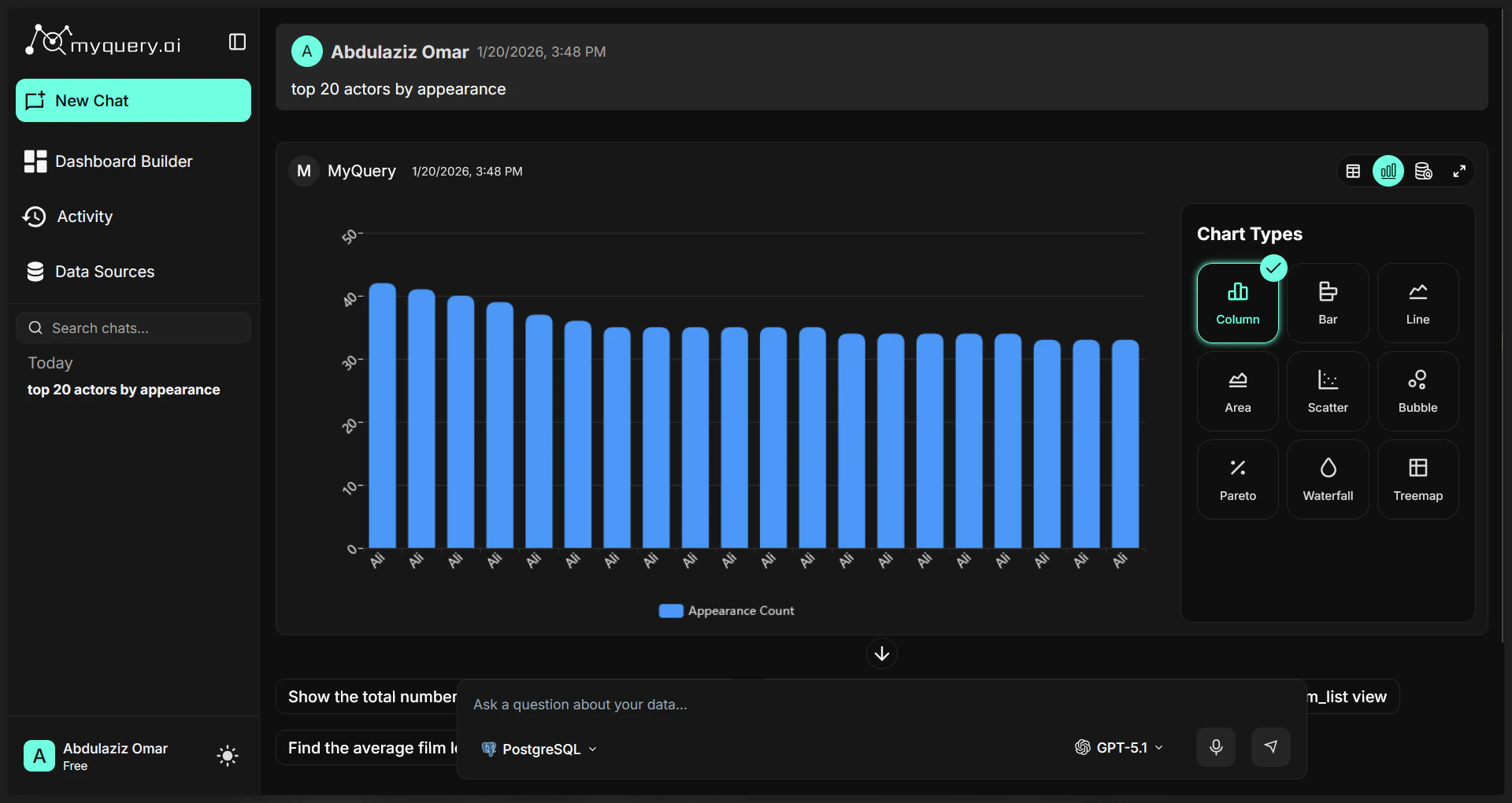 * **Change Chart Type:** Use the selector on the right to switch between visualizations like Area, Scatter, or Waterfall.
* **Customize Data:** If your data is complex, the system provides **Pivot Configurations** to group, stack, or aggregate data exactly how you need it.
### **Result View (Interactive Table)**
For deeper analysis of raw data, click the **Result** tab. This view offers powerful tools:
* **Change Chart Type:** Use the selector on the right to switch between visualizations like Area, Scatter, or Waterfall.
* **Customize Data:** If your data is complex, the system provides **Pivot Configurations** to group, stack, or aggregate data exactly how you need it.
### **Result View (Interactive Table)**
For deeper analysis of raw data, click the **Result** tab. This view offers powerful tools:
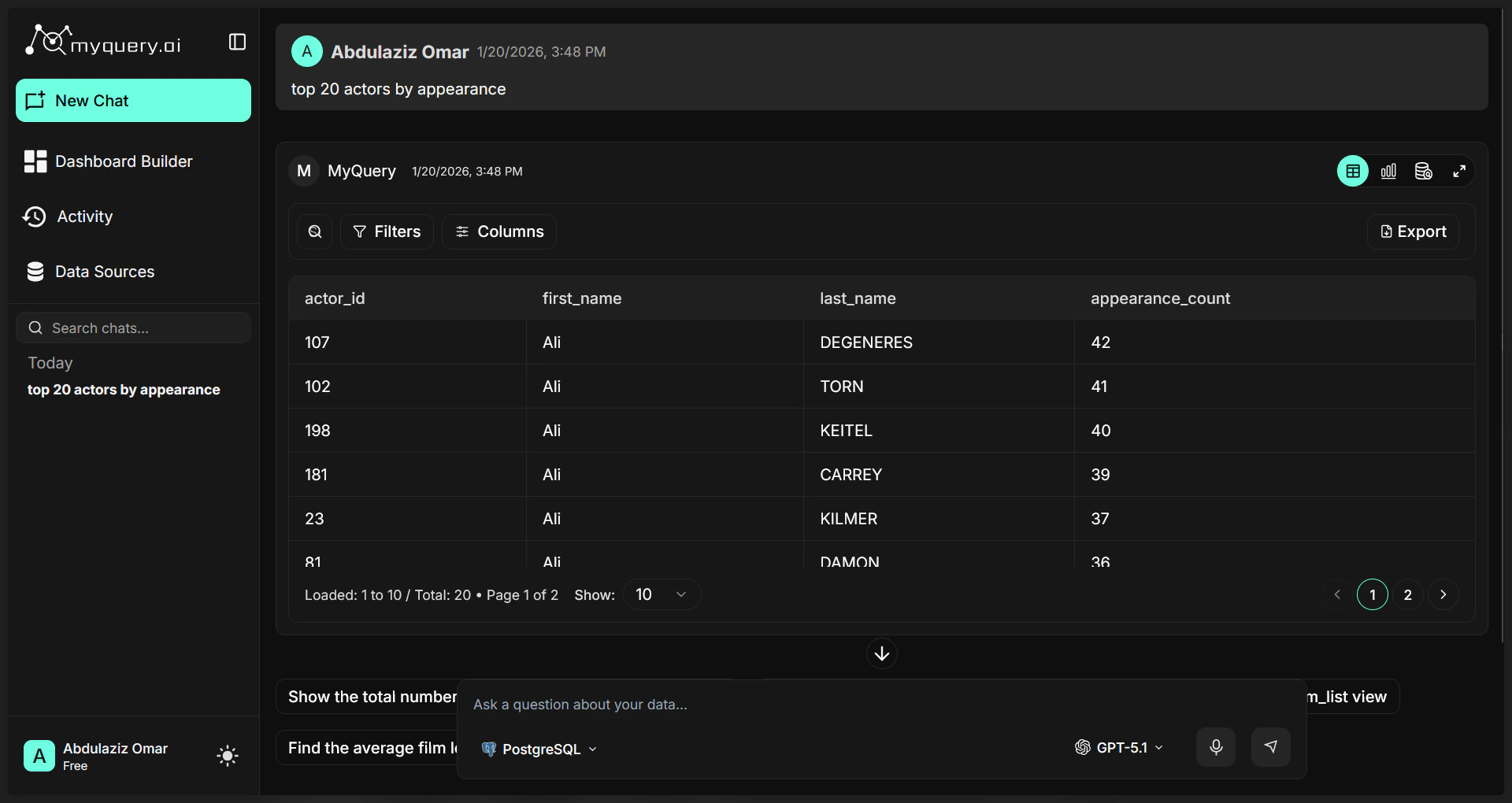 * **Searching & Filtering:** Use the search bar in the table header to find specific records. Use the **Filter** button to add complex rules (e.g., *"Price is greater than 100"*).
* **Sorting:** Click any column header to sort the data in ascending or descending order.
* **Pagination:** If your query returns many rows, use the pagination controls at the bottom to browse through pages.
* **Column Selection:** Click the column icon to hide or show specific fields in your table.
### **Query View (For Advanced Users)**
View the exact logic used to fetch your data.
* **Searching & Filtering:** Use the search bar in the table header to find specific records. Use the **Filter** button to add complex rules (e.g., *"Price is greater than 100"*).
* **Sorting:** Click any column header to sort the data in ascending or descending order.
* **Pagination:** If your query returns many rows, use the pagination controls at the bottom to browse through pages.
* **Column Selection:** Click the column icon to hide or show specific fields in your table.
### **Query View (For Advanced Users)**
View the exact logic used to fetch your data.
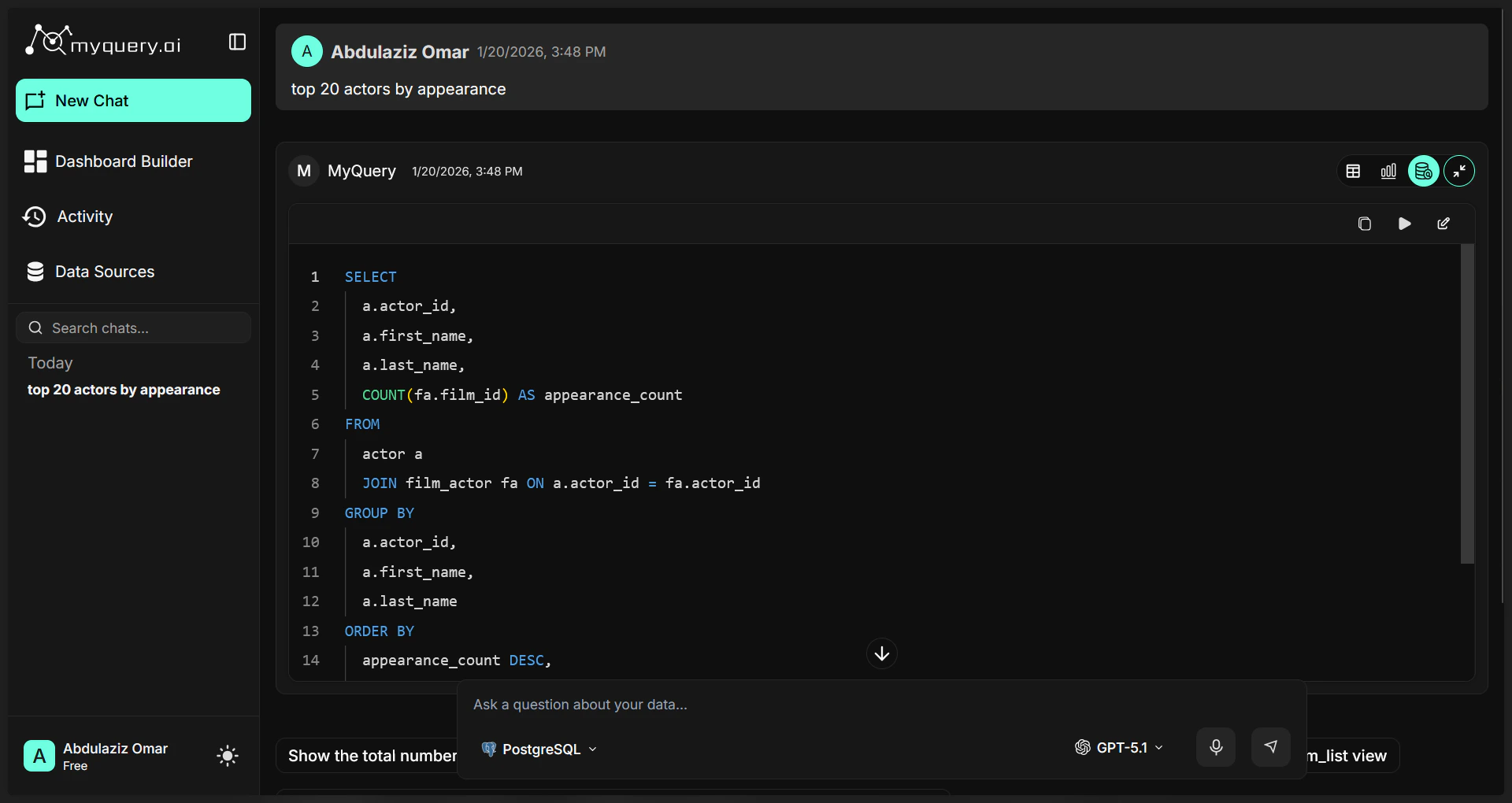 * **Edit & Re-run:** If the AI didn't get it quite right, you can click **Edit**, modify the code directly, and hit **Play** to see the updated results.
* **Copy:** Use the **Copy** icon to share the logic with teammates or use it in other tools.
***
## **3. Advanced Features**
* **Fullscreen Mode:** Need more space? Use the **Expand** icon (top right of the response) to open the table or chart in a larger view.
* **Refine Your Search:** Like a real conversation, you can ask follow-up questions. For example, after asking for sales, you can say: *"Now show me just the 'North' region."*
***
## **4. Managing Your Conversations**
* **History Sidebar:** All your past chats are saved automatically. Access them anytime from the left sidebar to pick up where you left off.
* **Loading Previous Messages:** For long investigations, click **"Load Previous Messages"** at the top of the chat to see older context.
* **New Chat:** To start a fresh analysis, click the "\*\*New Chat" \*\*button in the Side bar. This cleans your workspace and start new conversation but keeps your old chats safely in the sidebar.
***
## **5. Usage & Credits**
Your account comes with a monthly allowance of AI queries.
* **Real-time Tracking:** The system will notify you if you are running low on queries.
* **Addon Credits:** If you reach your limit, you can easily top up credits to keep your analysis moving without waiting for the next month.
* **Usage Breakdown:** View exactly how many queries you've used across your team in the dashboard usage statistics.
## **6. Self-Healing Intelligence**
Sometimes databases can be tricky. If your query encounters a technical error, MyQuery's **Auto-Fix** feature kicks in. You'll see the system attempting to fix the query automatically in the background, ensuring you get your answer without manual troubleshooting.
* **Edit & Re-run:** If the AI didn't get it quite right, you can click **Edit**, modify the code directly, and hit **Play** to see the updated results.
* **Copy:** Use the **Copy** icon to share the logic with teammates or use it in other tools.
***
## **3. Advanced Features**
* **Fullscreen Mode:** Need more space? Use the **Expand** icon (top right of the response) to open the table or chart in a larger view.
* **Refine Your Search:** Like a real conversation, you can ask follow-up questions. For example, after asking for sales, you can say: *"Now show me just the 'North' region."*
***
## **4. Managing Your Conversations**
* **History Sidebar:** All your past chats are saved automatically. Access them anytime from the left sidebar to pick up where you left off.
* **Loading Previous Messages:** For long investigations, click **"Load Previous Messages"** at the top of the chat to see older context.
* **New Chat:** To start a fresh analysis, click the "\*\*New Chat" \*\*button in the Side bar. This cleans your workspace and start new conversation but keeps your old chats safely in the sidebar.
***
## **5. Usage & Credits**
Your account comes with a monthly allowance of AI queries.
* **Real-time Tracking:** The system will notify you if you are running low on queries.
* **Addon Credits:** If you reach your limit, you can easily top up credits to keep your analysis moving without waiting for the next month.
* **Usage Breakdown:** View exactly how many queries you've used across your team in the dashboard usage statistics.
## **6. Self-Healing Intelligence**
Sometimes databases can be tricky. If your query encounters a technical error, MyQuery's **Auto-Fix** feature kicks in. You'll see the system attempting to fix the query automatically in the background, ensuring you get your answer without manual troubleshooting.