

Features
- AI Planning Engine: A two-step process where the AI first drafts a “Dashboard Plan” (choosing the best KPIs and visual hierarchy) before executing the queries.
- Real-time Streaming: Visualizations and metrics stream onto the canvas as they are generated, rather than waiting for the entire dashboard to finish.
- Dynamic Gridstack Layout: A fully interactive drag-and-drop interface that allows you to resize, rearrange, and pin components to a custom grid.
- Multi-Turn Iteration: Add specific charts, KPIs, or tables to an existing dashboard using follow-up conversational prompts.
Usage
-
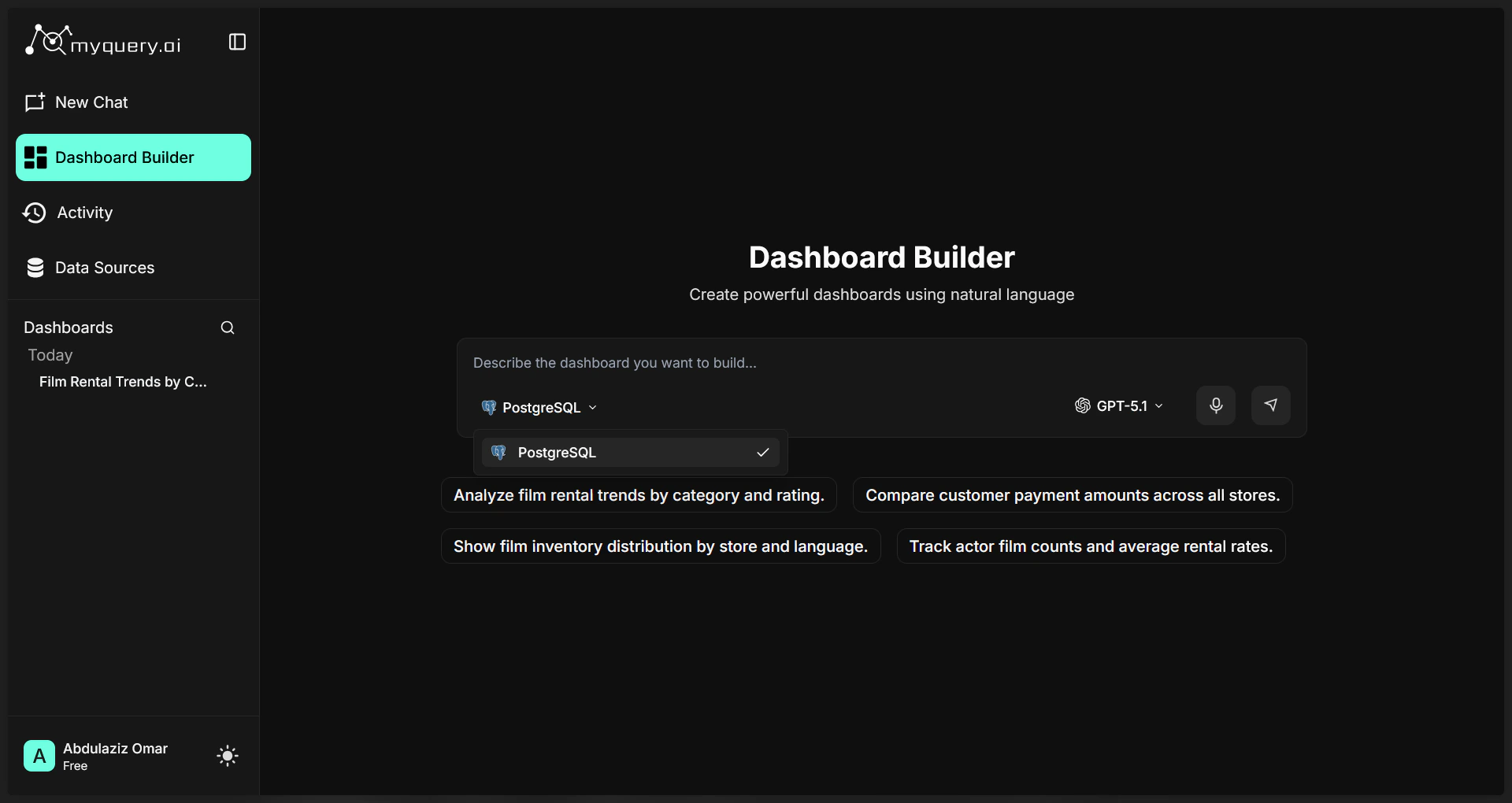
Start by choosing the specific database you want to analyze from the dropdown menu in the sidebar or top navigation bar.
-
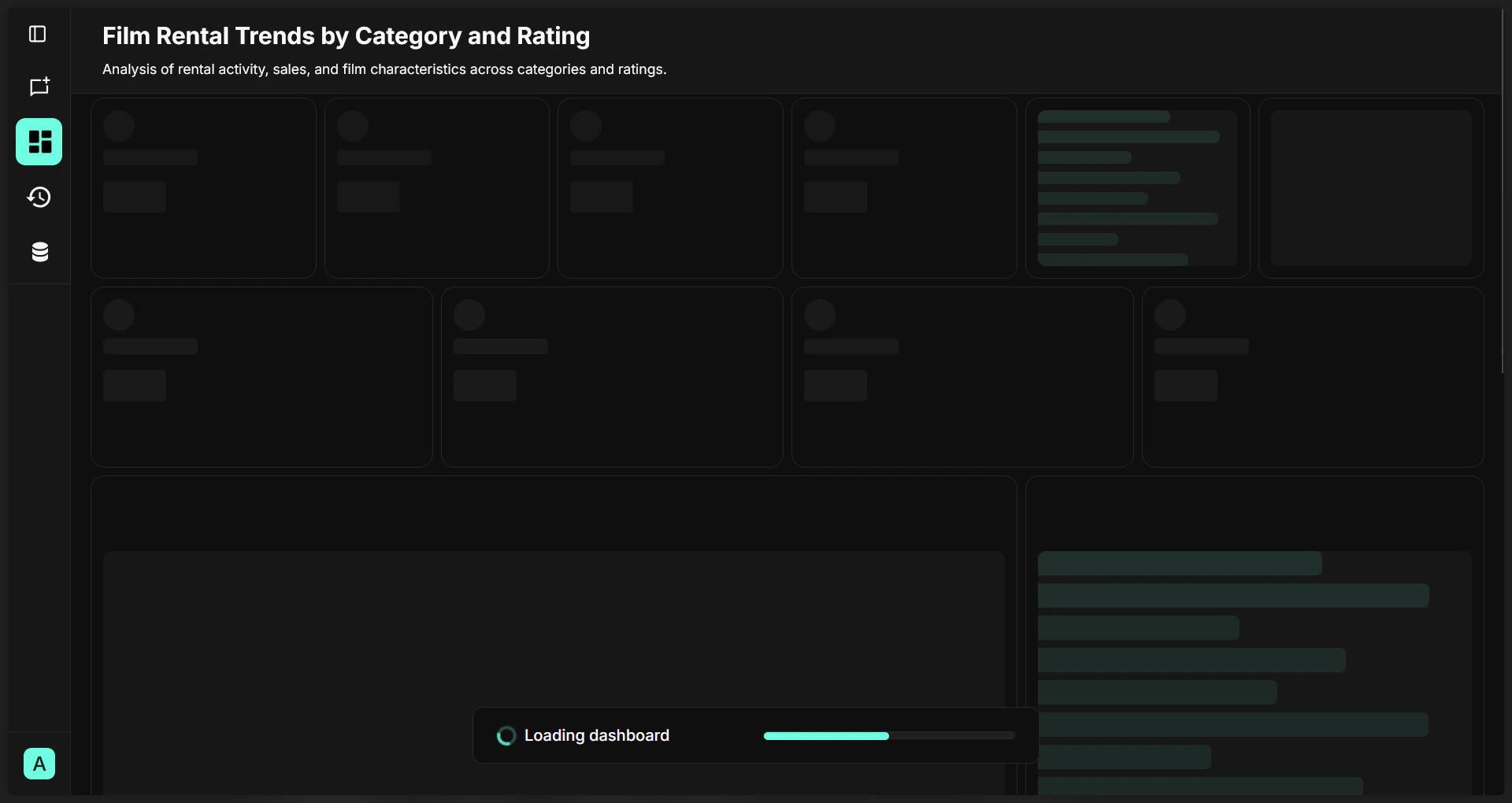
Prompt the AI: Enter a high-level question in the text area (e.g., “Film Rental Trends by Category and Rating”). The AI will automatically begin its Planning Phase. Watch as the AI drafts a dashboard structure. It will intelligently determine which KPIs, charts, and tables best answer your question before it executes any queries.
-
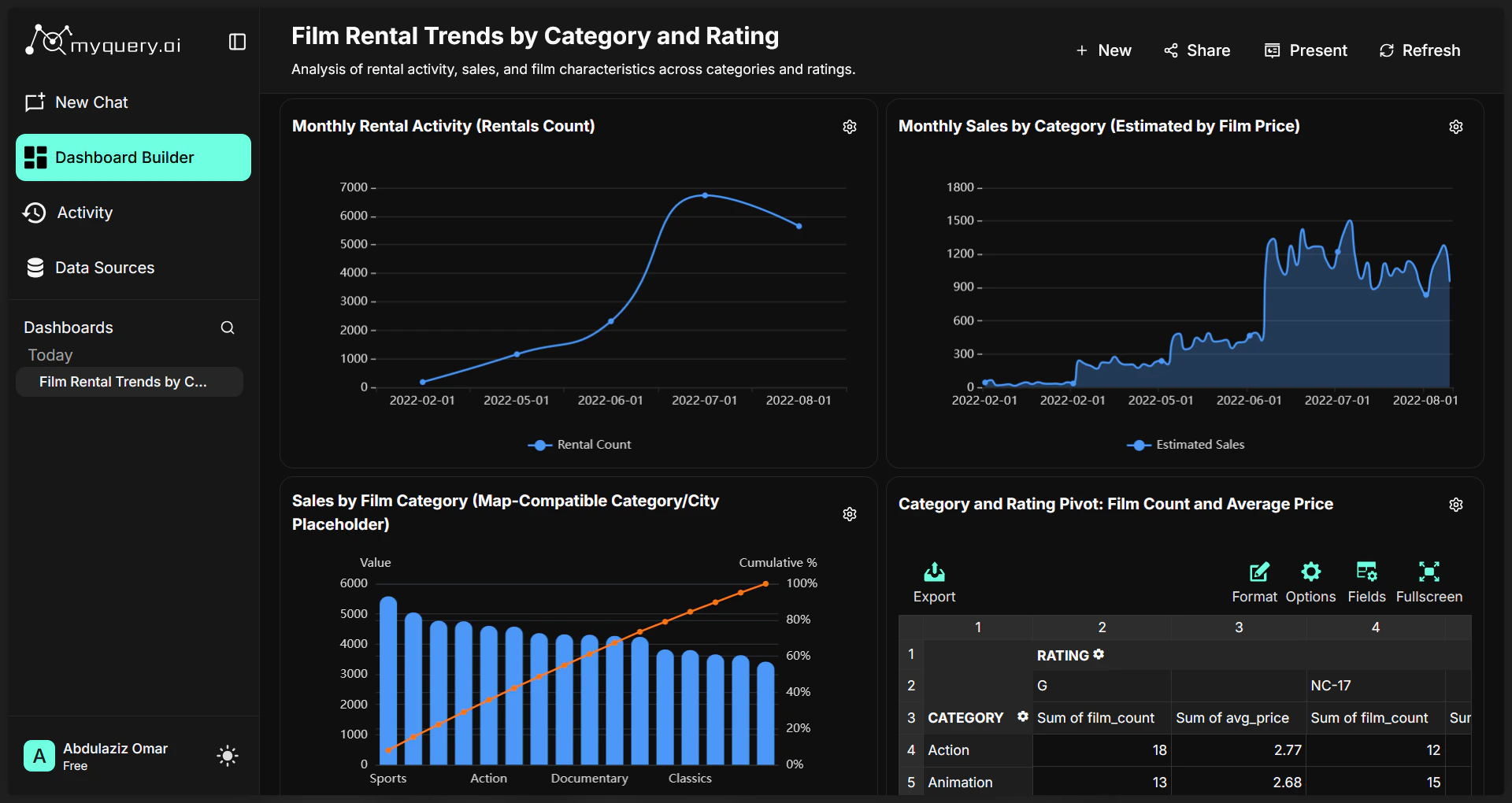
The Result is shown:
Actions
- Customize the Layout:
- Drag & Drop: Move any chart or metric to your preferred position on the canvas.
- Resize: Use the handles on the bottom-right of any card to expand or shrink it.
- Auto-Save: The layout snaps to a grid and is automatically saved to your profile.
- Inspect and Edit:
- View SQL: Double-click or click the “Inspect” icon on any chart to see the AI-generated SQL query.
- Edit Content: Manually update chart titles, descriptions, and Markdown annotations to add context for your team.
- Present Your Insights:
- Presentation Mode: Toggle the “Theater” icon in the toolbar for a clean, full-screen view suitable for meetings.
- Export: Use the export menu to download your complete dashboard as a vectorized PDF or a multi-slide PowerPoint (PPTX) deck.
- Manage Your Work: Access previously built dashboards from the “Saved Dashboards” list to refresh data or continue editing.
- Customize the Layout: