

1. Asking Your First Question
At the bottom of the chat interface, you’ll find a search bar. You can type any question related to your database, such as:- “What are the top 10 customers by total spend this year?”
- “Show me a monthly trend of new signups in 2023.”
- “Which products are low on stock in the ‘Electronics’ category?”
2. Navigating the Results
Once you submit a question, MyQuery generates three ways to interact with your data:Chart View (Visual Insights)
MyQuery automatically selects the best visualization for your data (e.g., Bar chart, Line graph, or Pie chart).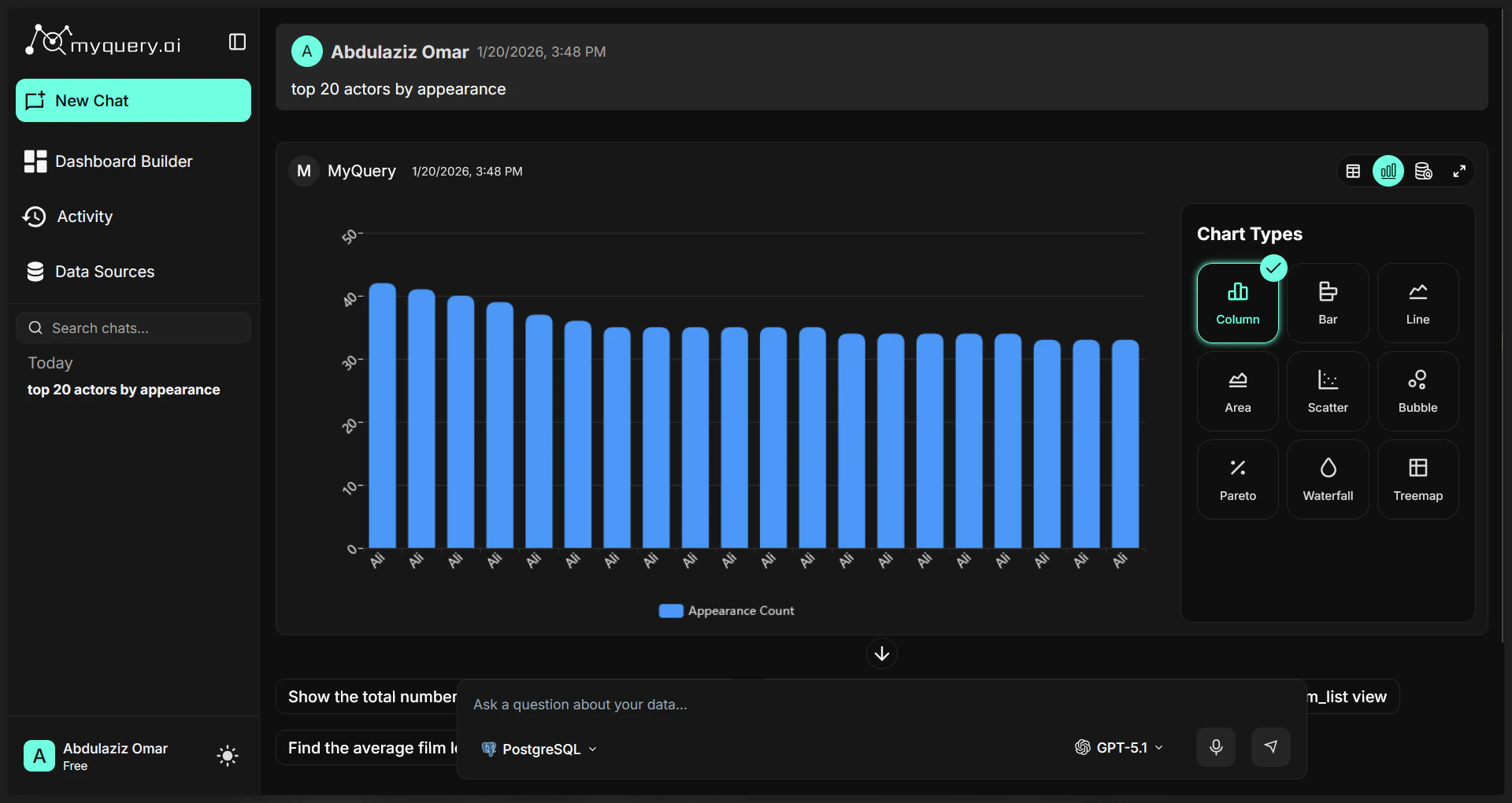
- Change Chart Type: Use the selector on the right to switch between visualizations like Area, Scatter, or Waterfall.
- Customize Data: If your data is complex, the system provides Pivot Configurations to group, stack, or aggregate data exactly how you need it.
Result View (Interactive Table)
For deeper analysis of raw data, click the Result tab. This view offers powerful tools: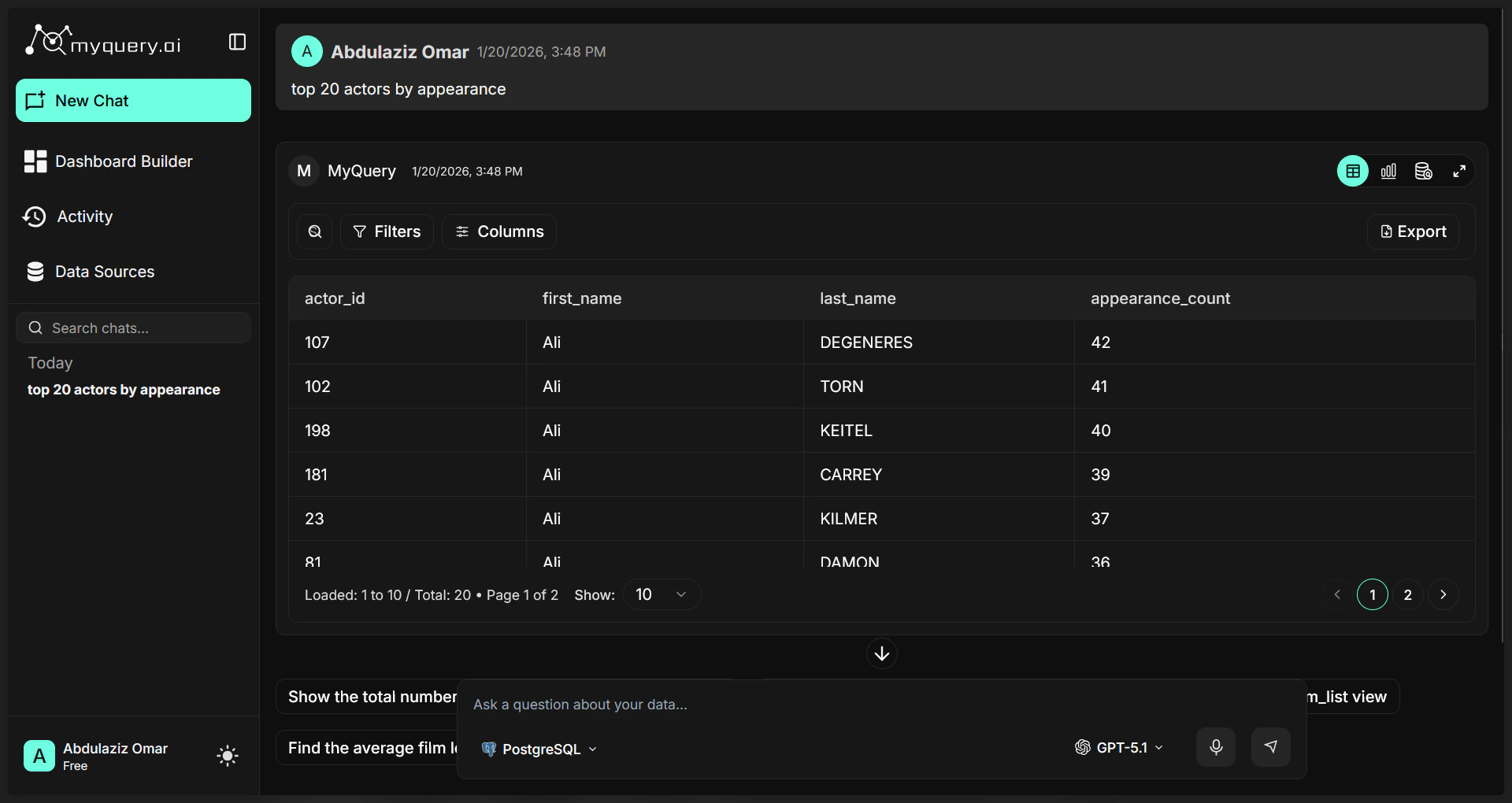
- Searching & Filtering: Use the search bar in the table header to find specific records. Use the Filter button to add complex rules (e.g., “Price is greater than 100”).
- Sorting: Click any column header to sort the data in ascending or descending order.
- Pagination: If your query returns many rows, use the pagination controls at the bottom to browse through pages.
- Column Selection: Click the column icon to hide or show specific fields in your table.
Query View (For Advanced Users)
View the exact logic used to fetch your data.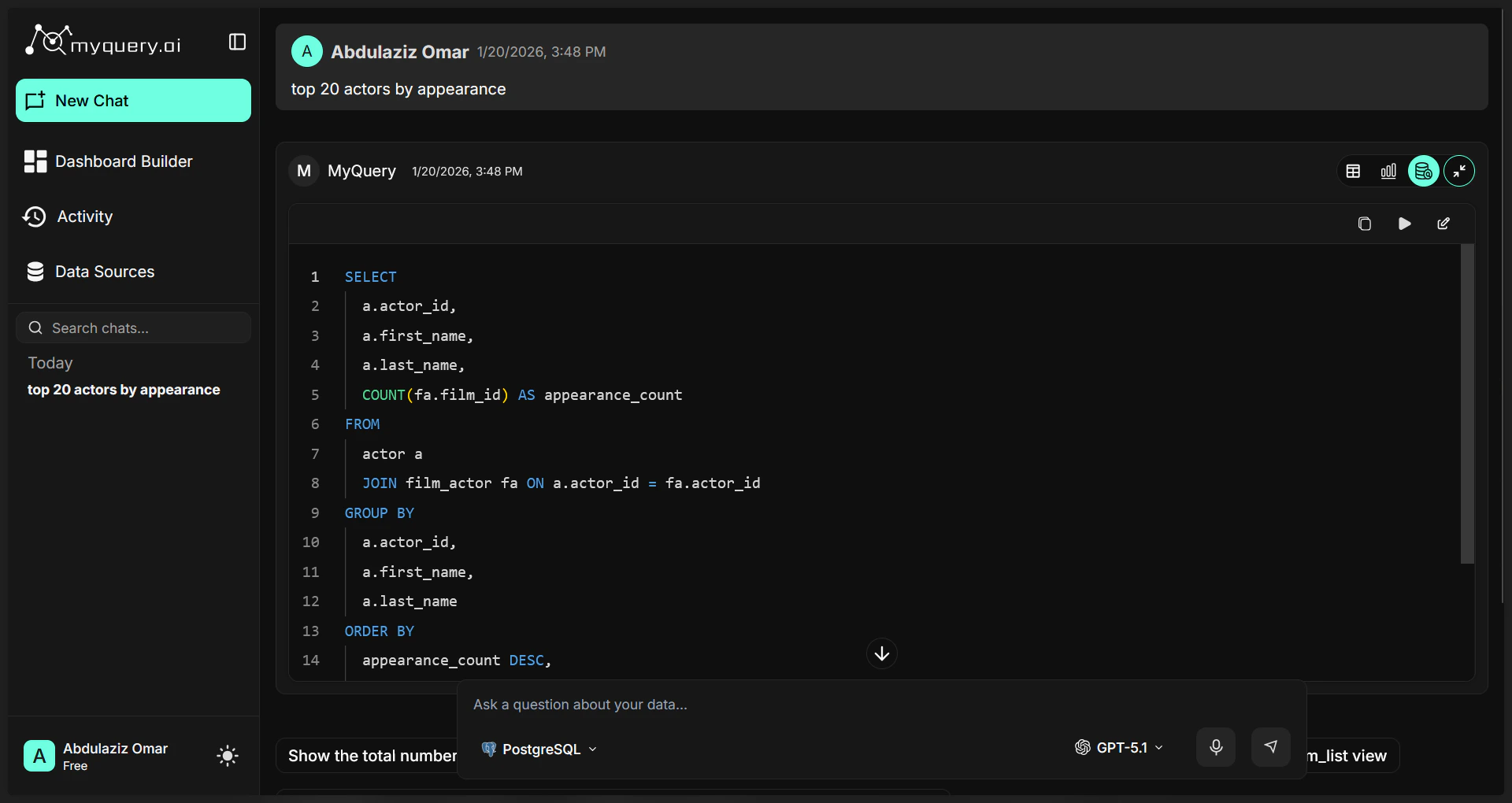
- Edit & Re-run: If the AI didn’t get it quite right, you can click Edit, modify the code directly, and hit Play to see the updated results.
- Copy: Use the Copy icon to share the logic with teammates or use it in other tools.
3. Advanced Features
- Fullscreen Mode: Need more space? Use the Expand icon (top right of the response) to open the table or chart in a larger view.
- Refine Your Search: Like a real conversation, you can ask follow-up questions. For example, after asking for sales, you can say: “Now show me just the ‘North’ region.”
4. Managing Your Conversations
- History Sidebar: All your past chats are saved automatically. Access them anytime from the left sidebar to pick up where you left off.
- Loading Previous Messages: For long investigations, click “Load Previous Messages” at the top of the chat to see older context.
- New Chat: To start a fresh analysis, click the “**New Chat” **button in the Side bar. This cleans your workspace and start new conversation but keeps your old chats safely in the sidebar.
5. Usage & Credits
Your account comes with a monthly allowance of AI queries.- Real-time Tracking: The system will notify you if you are running low on queries.
- Addon Credits: If you reach your limit, you can easily top up credits to keep your analysis moving without waiting for the next month.
- Usage Breakdown: View exactly how many queries you’ve used across your team in the dashboard usage statistics.